


Featured
Kiss Live Chat
WebiOS
Per the app: Video chat 1-on-1 on the web or with the iPhone app.
You click Join, hear the other person, and see a black rectangle where your camera should be. Or the website never asks for permission at all. In most cases, it is worth checking browser and operating-system permissions before blaming the video chat service.
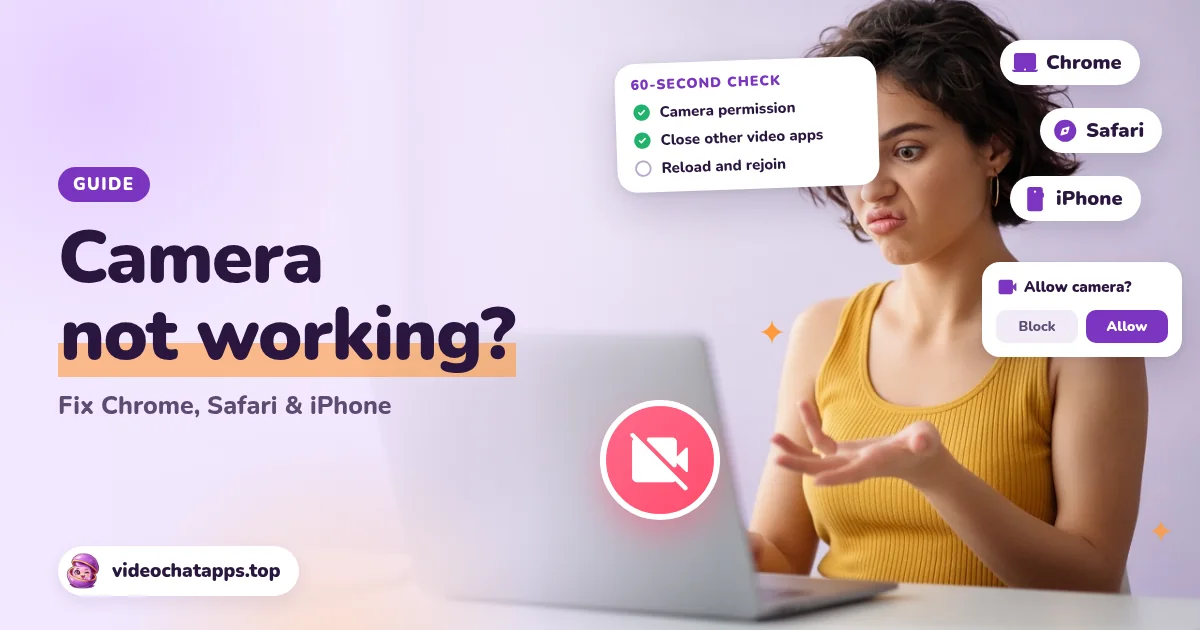
These steps focus on a black or blocked camera in Chrome, Safari and iPhone website permissions. If an installed iPhone app will not open, crash, or connect at all, start with video chat app not working on iPhone. For a wider explanation of camera, microphone and notification prompts, see video chat app permissions explained. Related format guides: best video chat sites for PC, video chat with strangers on iPhone and random video chat without downloading an app.
The quickest diagnosis is to identify whether the problem affects one website, one browser or your entire device. That tells you where to look first.
Do not repeatedly install unknown camera drivers from advertisements or third-party download sites.
Google's Chrome help instructions provide a direct route:
If your camera still fails, check your computer's camera privacy settings. On managed school or work computers, an administrator may control permission access.
Google's instructions: Use your camera and microphone in Chrome.
Safari website access is separate from app permissions. A working iPhone Camera app does not mean Safari can automatically use the camera.
Apple explains these controls in its Safari settings guide.
Installed apps do not use the same permissions menu as websites. Open Settings > Privacy & Security > Camera and check whether your video chat app is allowed. Repeat for Microphone. If the app is not listed, it may not have requested permission yet; reopen it and initiate the relevant feature.
Apple documents how app-level hardware permissions work in its iPhone privacy guide.
Check the selected camera. A desktop browser may be trying to use an unplugged USB webcam instead of the built-in one.
Close other apps. Quit conferencing, recording or streaming software that may have active camera sessions. Then restart the browser.
Check whether the call is video-enabled. Some platforms start with text or voice and require a separate action to enable the camera.
Try a different supported browser. This can help identify whether the issue is specific to your browser's configuration. Do not treat a browser swap as a way to bypass service restrictions.
Restart the device. It is unglamorous but can resolve a stuck camera process after other checks fail.
If the other person cannot hear you, verify that your microphone is not muted on the site, headset or operating system. In Chrome, open the Microphone area in Site settings and check the chosen input device. On an iPhone, review Safari's website microphone setting or the app-level microphone permission.
Avoid increasing volume blindly; speaker output volume does not fix a microphone permission problem.
A camera error and a network failure may look similar but require different fixes. Test another trusted page on the same connection. Disable an aggressive content blocker temporarily only if you trust the website and can re-enable it afterward. If you use a corporate network, browser policies or firewall restrictions may affect real-time communication.
If other video services work and only one platform fails, consult that provider's official help center rather than repeatedly changing global permissions.
| Symptom | First thing to check |
|---|---|
| Permission prompt never appears | Previously blocked site or browser settings |
| Browser says camera denied | Site-specific Camera permission |
| Camera works elsewhere, not here | Site settings, supported browser and call mode |
| Webcam light turns on but image is black | Wrong camera selected or another app conflict |
| Video works but no one hears you | Microphone permission, input choice and mute |
| Camera works in an app but not Safari | Safari's separate website permissions |
You may have denied a site permission earlier, or system-level privacy settings may block Chrome. Review both layers.
Usually you can resolve a permission issue more narrowly through site settings. Clearing everything can sign you out of unrelated sites and should not be your first step.
Browsers have camera and microphone permission systems. Review the permissions granted to each site and revoke access when you no longer want it.
Check the cable, device selection and operating-system privacy controls. Test the webcam in a trusted camera application before returning to the browser.
Bottom line: Work from the narrowest cause to the broadest: website permission, browser device selection, operating-system access, then hardware and network. Most camera problems do not require a new app or an unofficial repair tool.
Video chat apps we feature.
WebiOS
Per the app: Video chat 1-on-1 on the web or with the iPhone app.


iOS
Per the app: iPhone party rooms: video chat plus question & challenge cards.


iOS
Per the app: iPhone video chat with real-time translation and moderation.
Featured = our editorial picks, shown first.How we pick